Quick Start
Make sure PC2Products is installed, activate the environment, and start the BERA Tools GUI. The tools are under the PC2Products category.
conda activate PC2Products
bt gui        # or, with pixi: pixi run main
Example Data
Sample LiDAR tiles are in tests/data/LiDAR/. The examples on each tool page use them.
Typical workflow
graph TD
    A["LiDAR data info"] --> B["Raster Cell size"]
    B --> C["Ground Classify Using CSF"]
    C --> D["Generate DTM"]
    C --> E["Normalize LiDAR Data"]
    E --> F["Generate CHM or DSM"]
    C --> G["Detect Hummock and Hollow"]
    F --> H["Surface Water Mapping"]
    D --> I["Depth-to-Water"]
    H --> I
    D --> J["Seismic Line Disturbance Analysis"]
    G --> J
    I --> J
    click A "../user/las_info" "LiDAR data info"
    click B "../user/cellsize" "Raster Cell size"
    click C "../user/gnd_csf" "Ground Classify Using CSF"
    click D "../user/dtm" "Generate DTM"
    click E "../user/normalize" "Normalize LiDAR Data"
    click F "../user/chm_dsm" "Generate CHM or DSM"
    click G "../user/hummock_hollow" "Detect Hummock and Hollow"
    click H "../user/surface_water" "Surface Water Mapping"
    click I "../user/dtw" "Depth-to-Water"
click J "../user/seismic_line_analysis" "Seismic Line Disturbance Analysis"- LiDAR data info: check the CRS, extent, density and whether the data is height-normalized.
- Raster Cell size from LiDAR data: preview the cell size that the raster tools will use.
- Ground Classify Using CSF: classify ground points if the data isn't ground-classified yet.
- Generate DTM from LiDAR Data: build the bare-earth terrain model.
- Normalize LiDAR Data: subtract the terrain from the point cloud, so that Z is height above ground.
- Generate CHM or DSM from LiDAR Data: build a CHM from the normalized tiles, or a DSM from the original tiles.
- Detect Hummock and Hollow from LiDAR Data: map micro-topography from the ground-classified data.
- Surface Water Mapping: map surface water from a true-colour orthomosaic.
- Depth-to-Water from Surface Water: krige a water table from the surface water and compute depth to water.
- Seismic Line Disturbance Analysis: compare seismic lines with the surrounding peatland, using the DTM, hummock/hollow and depth-to-water rasters.
Running the tools
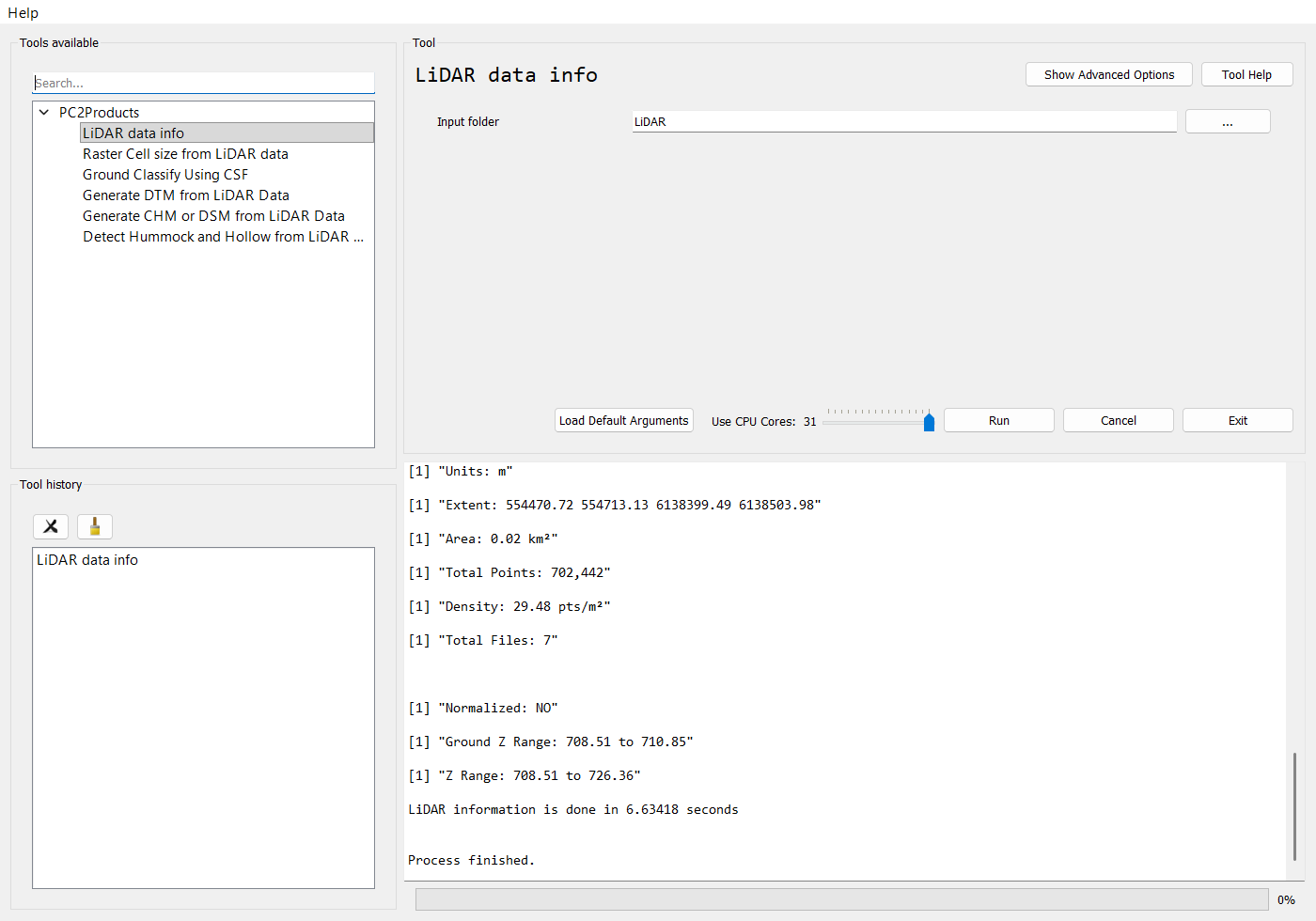
Select a tool under PC2Products, fill in the parameters and click Run. The R output streams into the log while the tool runs.
bt list-tools                       # list the tool subcommands
bt dtm                              # show the parameters for one tool
bt dtm --in_las_folder <las_dir> --out_folder <out_dir> --style tin -p 4
bt reads each tool's parameters from beratools.json, converts values to the right type and
rejects anything that isn't one of a list parameter's allowed values.
python -m beratools.tools.rpy_dtm_by --in_las_folder <las_dir> --out_folder <out_dir> --style tin
-p/--processes sets the requested number of workers, and -l/--log_level sets the log level.
Example workflow script
examples/full_workflow.py runs the LiDAR steps of the typical workflow in one go, driven by
Hydra and examples/config.yaml. Run it from the repository root:
python examples/full_workflow.py           # run every step on the sample tiles
python examples/full_workflow.py processes=4 DATA_DIR=D:/my_data/LiDAR
python examples/full_workflow.py steps_to_run=[dtm,chm_dsm] args_chm_dsm.style=pitfree
Troubleshooting
- The first run is slow: each tool installs the R packages it needs into the environment's R the first time. See How all the tools behave.
- R can't be found: see How R is located.
- Windows, GDAL DLL errors: run the tools from an activated environment.
- Windows, rpy2
IndexErrorinrpy2/situation: with R fromC:\Program Files\Rand rpy2 installed by pip, run the tools from PowerShell or cmd, not Git Bash.